Win10系统之家系统教程

PyCharm怎样设置PYUIC

2023-09-05 作者:Win10系统之家

   在座的各位对PyCharm软件应该不陌生吧,但是大家晓得PyCharm怎样设置PYUIC吗?接下来就为大家分享PyCharm设置PYUIC的具体方法,感兴趣的小伙伴一起来学习吧。

  首先打开PyCharm随便新建个工程
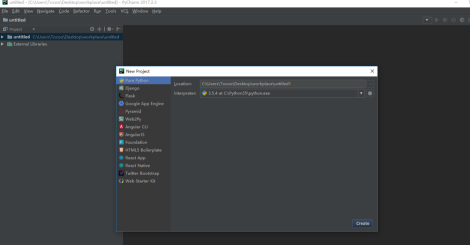
PyCharm如何设置PYUIC?PyCharm设置PYUIC的方法

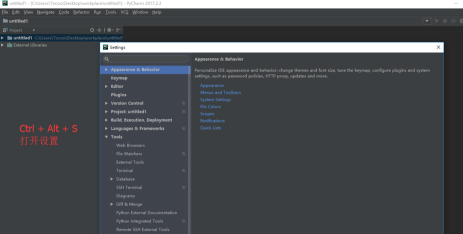
  组合键Ctrl + Alt + S打开设置

PyCharm如何设置PYUIC?PyCharm设置PYUIC的方法截图

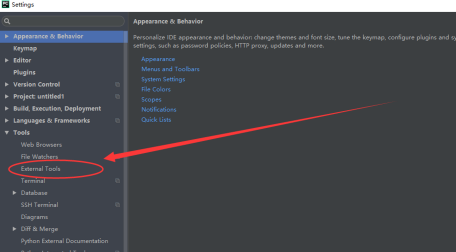
  点击External tools

PyCharm如何设置PYUIC?PyCharm设置PYUIC的方法截图

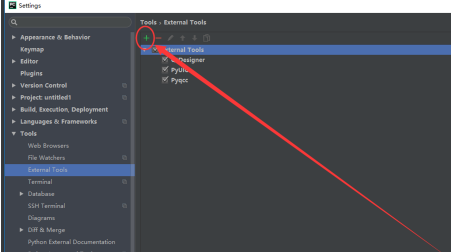
  点击新建“+”

PyCharm如何设置PYUIC?PyCharm设置PYUIC的方法截图

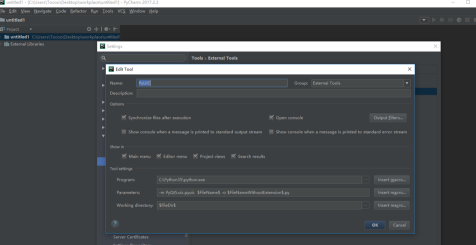
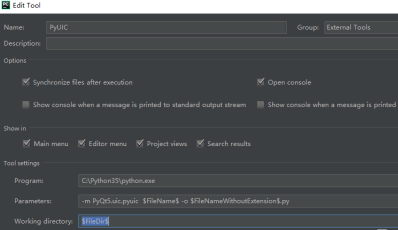
  我们这里和下图设置一致即可

PyCharm如何设置PYUIC?PyCharm设置PYUIC的方法截图

  输入=》这个是Python的执行文件位置

  C:Python35python.exe
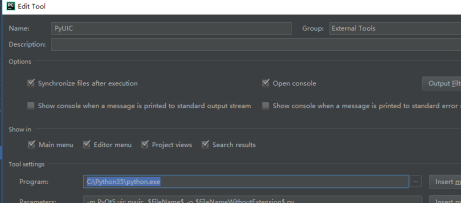
PyCharm如何设置PYUIC?PyCharm设置PYUIC的方法截图

  输入=》

  -m PyQt5.uic.pyuic $FileName$ -o $FileNameWithoutExtension$.py
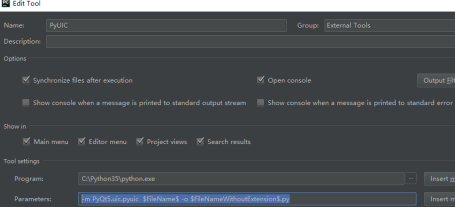
PyCharm如何设置PYUIC?PyCharm设置PYUIC的方法截图

  输入=》

  $FileDir$

  点击保存即可

PyCharm如何设置PYUIC?PyCharm设置PYUIC的方法截图

最新更新

热门推荐

排行榜

网友评论

我要评论
发表 取消
系统教程 |电脑软件 | 专题
Copyright © 2004-2025
Win10系统之家(m.ghostwin10.net).All Rights Reserved